
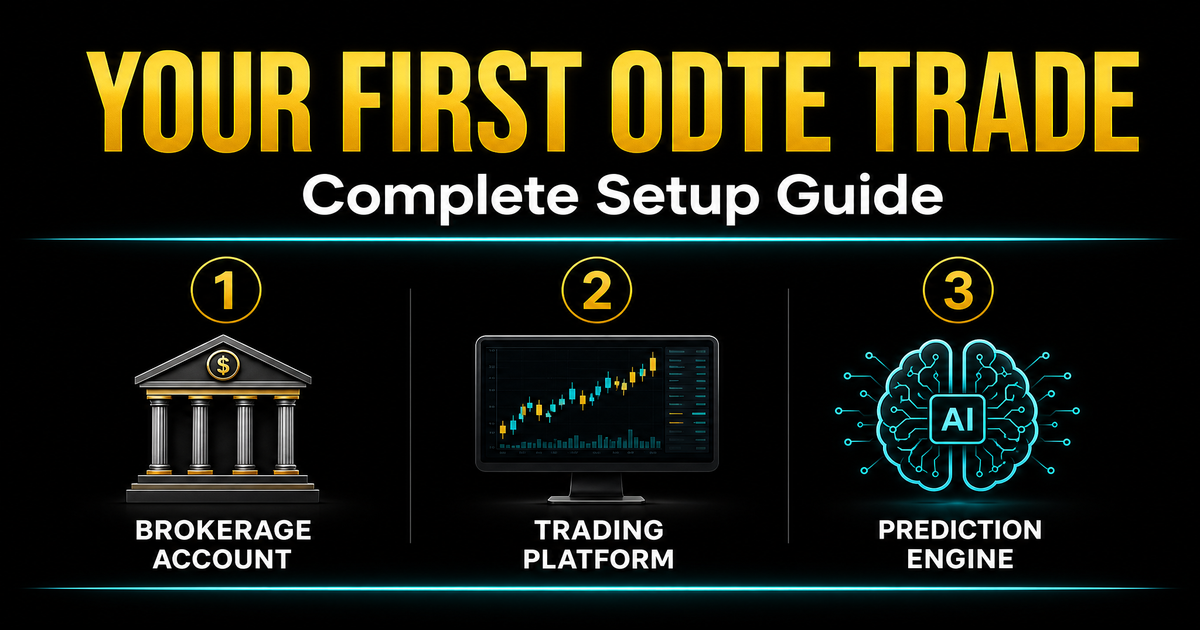
The Big Picture: 3 Steps to Your First Trade
Making your first 0DTE SPX trade might sound complicated, but it boils down to three things:
Brokerage Account
Open a Charles Schwab account with Level 2 options approval and fund it from your bank.
Trading Platform
Download ThinkorSwim — the FREE desktop app where you'll actually place trades and see charts.
Prediction Engine
Sign up for SPXXL — the software that reads the market and tells you which trade to make.
That's it. Three steps and you're ready. Let's walk through each one in detail.
Step 1 — Open a Charles Schwab Brokerage Account
A brokerage account is like a bank account, except it lets you buy and sell stocks and options. I recommend Charles Schwab because they own ThinkorSwim (the trading platform I'll use in Step 2), and everything works together seamlessly.
Here's exactly what to do:
- 1.1
Go to Schwab.com
Open your browser and go to schwab.com. Click the big "Open an Account" button. - 1.2
Choose "Brokerage Account"
You'll see different account types. Pick "Individual Brokerage Account". This is the standard account for one person. If you're under 18, a parent will need to open a custodial account for you. - 1.3
Fill Out Your Personal Info
They'll ask for your:- Full legal name
- Date of birth
- Social Security Number (SSN) — required by law for any brokerage
- Home address
- Phone number and email
- Employment information
This is totally normal — every broker requires this by law (it's called KYC: "Know Your Customer"). Your info is encrypted and secure.
- 1.4
Set Up Login Credentials
Create a username and password. Enable two-factor authentication (2FA) for security — this sends a code to your phone when you log in. You're dealing with real money here, so take security seriously. - 1.5
Wait for Approval
Schwab typically approves accounts within 1–3 business days. You'll get an email when it's ready. While you wait, move on to Step 2 (downloading ThinkorSwim).
Step 1B — Get Level 2 Options Approval
Having a brokerage account alone isn't enough — you need options trading permission. Brokerages use "levels" to determine what types of trades you're allowed to make.
What the Levels Mean
Covered calls and cash-secured Puts only. Too limited for 0DTE.
Buy & sell calls/puts, Vertical Spreads (Debit Spreads). This is what you need.
← YOU NEED THISComplex multi-leg strategies like Debit Condors, Debit Butterflies. Nice to have, but Level 2 is enough to start.
How to apply for Level 2:
- 1B.1
Log into your Schwab account
Once your account is approved, log in at schwab.com and navigate to Trade → Options. You'll be prompted to apply for options trading. - 1B.2
Answer the experience questionnaire
Schwab asks about your trading experience, income, net worth, and risk tolerance. Be honest, but know that they're looking for:- Trading objective: "Speculation" or "Trading Profits"
- Experience level: Even "limited" experience can qualify for Level 2
- Risk tolerance: "Moderate" to "High"
- Annual income and net worth: They want to see you can absorb potential losses
- 1B.3
Submit and wait
Options approval usually happens within 1–2 business days, sometimes instantly. You'll get a notification when approved.
Pro Tip
If you only get Level 1 initially, don't panic. You can call Schwab's options desk at 1-800-435-4000 and explain that you want to trade Vertical Spreads. They're usually happy to upgrade you after a brief conversation.
Step 1C — Link Your Bank Account & Deposit Money
Now let's get money into your account so you can actually trade.
- 1C.1
Go to Transfer & Payments
In your Schwab account, navigate to Accounts → Transfer & Payments → Deposit. - 1C.2
Link your bank account
You'll need your bank's routing number and your account number. You can find both on a check, or in your bank's mobile app under account details. Schwab will make two tiny test deposits (like $0.01 and $0.03) to verify the link. - 1C.3
Transfer funds
Once your bank is linked, transfer at least $2,000–$5,000 to start. Here's why:- A single SPX Debit Spread typically costs $250–$500 per contract
- You want enough for 3–5 trades so one loss doesn't wipe you out
- SPX options are exempt from the PDT rule, so no $25K minimum required
- 1C.4
Wait for the transfer
ACH transfers take 1–3 business days. Schwab sometimes gives you instant buying power for a portion of your deposit while the full transfer settles.
Checkpoint ✔️
At this point you have: a Schwab brokerage account ✓ Level 2 options approval ✓ Money deposited ✓. Your brokerage is ready. Now you need the software to actually trade.
Step 2 — Download ThinkorSwim (Your Trading Cockpit)
ThinkorSwim (TOS) is a FREE desktop application made by Charles Schwab. It's where you'll see charts, options chains, place orders, and monitor your trades. Think of it as the cockpit of an airplane — the brokerage account is the plane, but TOS is where you sit and fly it.
- 2.1
Go to the download page
Visit schwab.com/trading/thinkorswim and click "Download". Choose the version for your computer:- Windows: Download the .exe file and run the installer
- Mac: Download the .dmg file, drag to Applications
- 2.2
Install and log in
Run the installer (it takes 2–5 minutes). When it opens, log in with your Schwab username and password — the same credentials you created in Step 1. - 2.3
Start with Paper Trading (practice mode)
When TOS opens, look at the top-left corner. You'll see a dropdown that says either "Live Trading" or "Paper Money". Switch to Paper Money first.Paper Money gives you a fake $100,000 account to practice with. Everything works exactly like real trading — same charts, same prices, same order types — but no real money is at risk. Use this for at least 1–2 weeks before going live.
Step 2B — Set Up ThinkorSwim for 0DTE Trading
TOS is incredibly powerful, which means it can be overwhelming at first. Here's the minimum setup you need for 0DTE SPX trading:
Load the SPX options chain
In the "Trade" tab, type "/SPX" or "SPX" in the symbol box and press Enter. Click "Option Chain" to see all available strikes and expirations. Filter for today's expiration (0DTE) only.
Set up a chart
In the "Charts" tab, type "/ES" (E-mini S&P 500 futures) for a real-time price chart. Set it to a 5-minute candle timeframe. /ES moves tick-for-tick with SPX and shows pre-market and after-hours data.
Add VWAP to your chart
Right-click on the chart → Studies → Add Study → search for "VWAP". This draws a line showing the volume-weighted average price — a critical reference point for 0DTE trading.
Set up your order defaults
Go to Setup → Order Defaults → Options. Set default order type to "Limit" (never use Market orders for options). Set quantity to 1 contract.
Checkpoint ✔️
You now have: Schwab account ✓ Options approval ✓ Funded account ✓ ThinkorSwim installed ✓ SPX options chain loaded ✓. Now you need the final piece — the prediction software that tells you what to trade and when.
Step 3 — Sign Up for SPXXL (Your Prediction Engine)
ThinkorSwim shows you the what (prices, charts, options chains). SPXXL tells you the so what — it reads the market data in real-time and tells you:
- What type of day it is — Trend Day? Balanced Day? Volatility Compression? Each requires a different strategy.
- Which option structure fits best — Debit Spread? Debit Condor? Debit Butterfly? SPXXL matches the structure to the session type.
- Where SPX will likely close — The SPXXL Close Zone™ shows a narrowing range of where SPX is headed by 4:15 PM.
- How fast your options are decaying — Real-time theta decay curves so you know exactly how time is affecting your position.
Signing up takes 2 minutes:
- 3.1
Go to SPXXL.com
Open spxxl.com/signup in your browser. - 3.2
Create your account
Enter your email and create a password. That's it — no cost. You'll get a 5-Day Trial with 5 live sessions of full Elite access. - 3.3
Your 5-Day Trial starts
After signing up, you automatically get a 5-Day Trial — 5 live sessions of full Elite access. This activates on the next market open, so if you sign up on a Saturday, your first session won't start until Monday at 9:30 AM. - 3.4
Open the Dashboard
Once logged in, you'll see the SPXXL dashboard. During market hours (Mon–Fri, 9:30 AM – 4:15 PM ET), it's alive with real-time data:- Session Classification — what type of trading day it is
- Confidence Score — how certain the classification is
- Recommended Structure — the best option strategy for right now
- SPXXL Close Zone™ — where SPX is likely to finish
You're Ready! 🎉
Schwab account ✓ Options approval ✓ Funded ✓ ThinkorSwim ✓ SPXXL ✓ — you have everything you need to make your first 0DTE trade.
Putting It All Together: Your First Trade Day
It's Monday morning. Markets open in 30 minutes. Here's your play-by-play:
Open ThinkorSwim and SPXXL side by side
TOS on the left with your /ES chart and SPX options chain. SPXXL dashboard on the right in your browser.
Market opens — DO NOT TRADE YET
The first 30 minutes are chaotic. Watch the initial balance (IB) form. SPXXL will show "Phase: IB Formation" during this period.
Read the session classification
SPXXL's session classification becomes reliable around 10:00–10:30. Check: What session type? What's the recommended structure? What's the confidence score?
Place your first trade (if setup is right)
If confidence is above 60% and the session type is clear, place a single Debit Spread following SPXXL's recommendation. Use TOS to execute the order.
Set your exit rules IMMEDIATELY
On TOS, set a Good-til-Cancel (GTC) order to close at 50% of max profit. Also set a mental stop: if the spread doubles in price, close it.
Close everything
As a beginner, close ALL positions by 3:30 PM. The final 45 minutes ("terminal zone") have extreme gamma risk. Don't be a hero.
Journal your trade
Write down: session type, structure used, entry/exit prices, profit or loss, what you did well, what you'd do differently. This journal is more valuable than any course.
The Golden Rules for Your First Month
These rules will keep you alive long enough to actually learn. Break them at your own peril:
ONE contract at a time
Never trade more than 1 contract per position until you have 20+ real trades logged.
Never risk more than 2% per trade
On a $5,000 account, max loss per trade = $100. Use narrow spreads (5–10 points wide) to control risk.
No trading in the first 30 minutes
The IB formation period is unpredictable. Wait for the session to establish itself.
Close everything by 3:30 PM
Terminal zone gamma can turn a winning trade into a max loss in minutes. Get out early.
Use limit orders ONLY
Never use market orders for options. The bid-ask spread on SPX options can be wide — a market order gives you the worst fill.
If SPXXL confidence is below 50%, sit out
No classification = no edge. The best trade is often no trade at all.
Journal every single trade
Date, session type, structure, entry, exit, P&L, notes. Review weekly. Patterns will emerge within a month.
Paper trade for 2 weeks first
Use TOS Paper Money mode. Place real-time paper trades following SPXXL signals. Track results. Switch to real money only when you're profitable on paper.